Last updated on December 21st, 2025 at 10:10 am
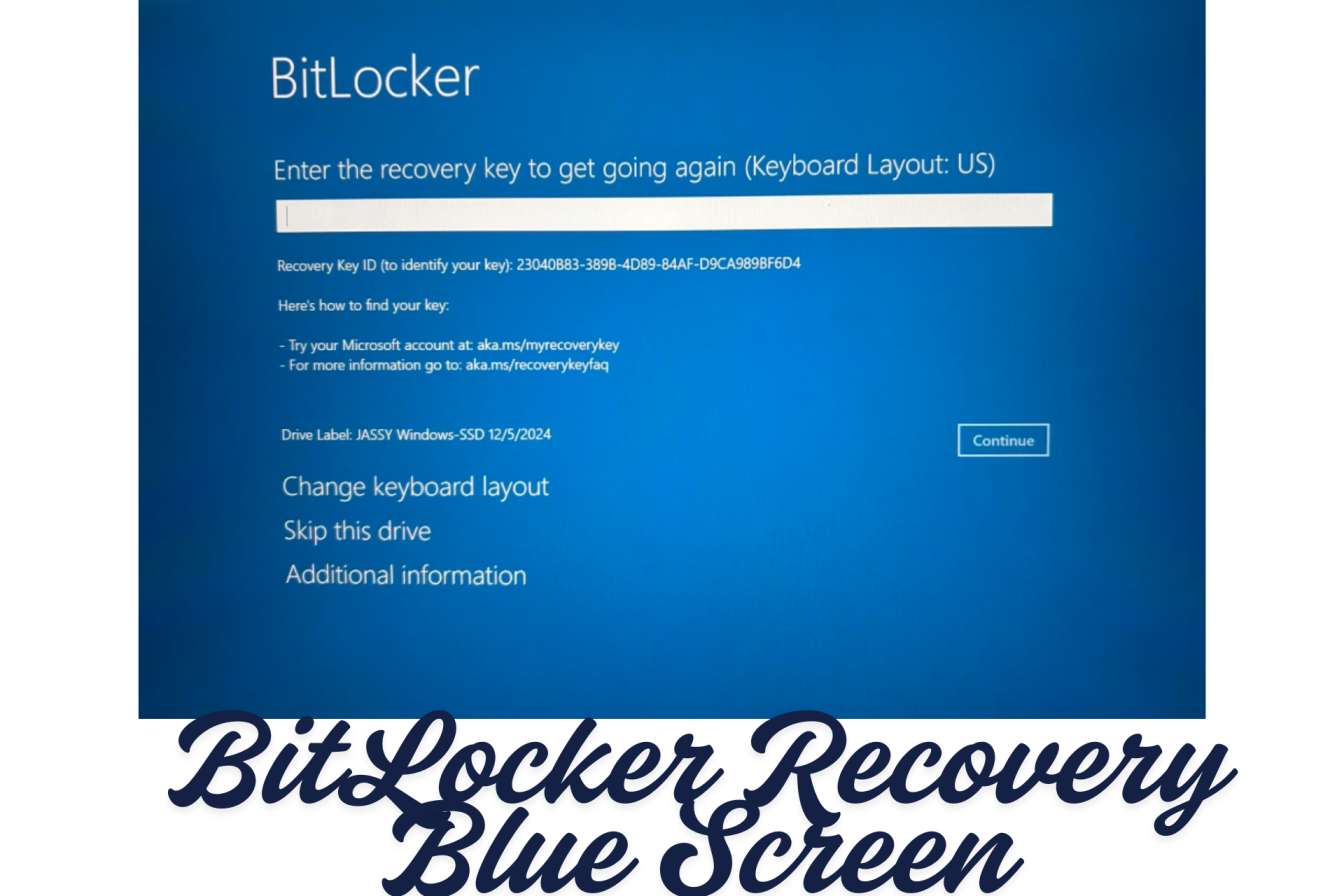
You have turned on the laptop with a typical day and it has changed to a bluish screen that requires a 48-digit recovery key that you have never seen anywhere.
I have experienced it when my screen started flashing what BitLocker expected me to do following what seemed to otherwise be a regular Windows update. This is the real situation and the way out of it.
What really This Blue Screen Means.
The BitLocker recovery screen is not a fluke, it is windows putting the security barrier up because something went wrong on your computer. Perhaps you installed a newer version, changed some RAM or your BIOS settings have changed. BitLocker (inbuilt Microsoft encryption) had taken notice and informed him that he needed to hold on, how do I know that I am the owner.
The thing is that your hard disk is in encrypted form. Anything without that 48 digit key keeps your files locked. No backdoor, no workaround. That is the reason why the first step is to find your recovery key.
Where to Recovery Your Recovery Key (Verify These in Sequence)
Microsoft account (Most common)
Probably your key is here in case you use personal Windows. Code aka.ms/myrecoverykey to your phone or any other computer. Enter using your Microsoft account that you used on your locked computer. You will find a list of recovery keys just to compare the Key ID on your blue screen and the one on the Internet.
Work or School Account
Company laptop? Use aka.ms/aadrecoverykey on the other hand. Log in using your work credentials. In case of that failure, reach your IT department, they can deactivate that.
Physical USB Disk or Printout.
The first time Time Bitlocker was switched on (you may not recall this), it could have offered to emergency save the key. You are advised to review any USB drives you use on a regular basis, or browse in your files whether there is a text file named BitLocker Recovery Key.txt or you have a printout you stashed away.
The Step-by-Step Fix
Breaking the loop and going back to work again after having that 48-digit key is easy.
Step 1: Enter the Recovery Key
Key all in upper case-type as indicated eight sets of six digits. Don’t rush. One misplaced number and you have to begin it all over. Press Enter and allow windows to boot up normally.
Step 2: Break the Cycle before It Begins to Repeat.
And this is what guides omit. When you simply key in the key and reboot you may have noticed that blue screen the following day. Here’s how to fix it:
Press Windows + X and choose Command Prompt (Admin) or windows power shell (Admin).
Enter the following command and press Entre:
manage-bde -status
This will indicate the drives that it has BitLocker turned on. You’ll likely see “C:” listed.
Now run this:
manage-bde -unlock C: -RecoveryPassword [your-48-digit-key]
Get your key [your-48-digit-key] and use it no brackets.
and lastly put the protection off:
manage-bde -protectors -badirectory C:
Restart your computer. It now should start using a normal boot without requesting the key.
Step 3: Enabling Bitlocker again (Not compulsory yet advisable)
When everything is stable back in Windows, an option to restore BitLocker protection can be turned on. Access Control Panel, System and Security, BitLocker Drive Encryption. Click on C: drive and choose Resume Protection. This encrypts your data but regenerates the boot validation.
What Has This to do with Cause in the First Place?
In my scenario, it was an update to the security of windows operating system. There is a bug in the Microsoft had issues with BitLocker prompts which pop up following updates in 2022, August 2024, May 2025, and October 2025. Thousands of users were sidelined every time.
- Nevertheless, updates are not the only trigger. I’ve seen this happen when:
- Someone upgraded their RAM
- BIOS was automatically updated.
- One of the windows services was called the Secure Boot, which was independently disabled.
- TPM (the security chip which does the encryption) hiccuped.
The One Thing You Actually Need to Do.
Do not put a close on this tab unless you have corrected the problem. Store your recovery key in a place you will access it upon future occasions. You must not I tell you it will happen again.
Make a screen shot of your recovery key aka.ms/myrecoverykey. Send it to yourself with the title of Bitlocker Key – DO NOT deletes. Store it in your passwords. Discuss it and fall in a print and place it in your deskery. That is, just do not keep it on the encrypted drive alone, it is the same as leaving your car keys locked in the car.
When the Key Doesn’t Work
I have heard of individuals whose recovery keys do not work at all. It is occasionally a typing error, however, in some cases, BitLocker metadata is corrupted. In the event that the key has been triple checked and it still rejects it, then it is time to reinstall windows. That is losing your data unless you have some backups.
Harsh reality? BitLocker has been made unbreakable. That’s the point. Even the high-tech data recovery services are unable to help you without the key.
Bottom Line
The BitLocker recovery screen is as though your computer is turning against you, yet the file is doing the job right, it is securing your files in the hands of a person who has stolen your laptop. The workaround is not complicated: just enter the key, press it, turn off the protectors until everything is stable, and then turn it back on.
Most of them take 10 minutes to get through this after they find their recovery key. The fact is that Microsoft is not telling users that they can this be triggered by updating and people are unaware of the whereabouts of their keys.
Now you know both.
Read:
How to Mirror Your iPhone to PC: Methods That Actually Work

I’m software engineer and tech writer with a passion for digital marketing. Combining technical expertise with marketing insights, I write engaging content on topics like Technology, AI, and digital strategies. With hands-on experience in coding and marketing.