Last updated on December 19th, 2025 at 02:47 pm
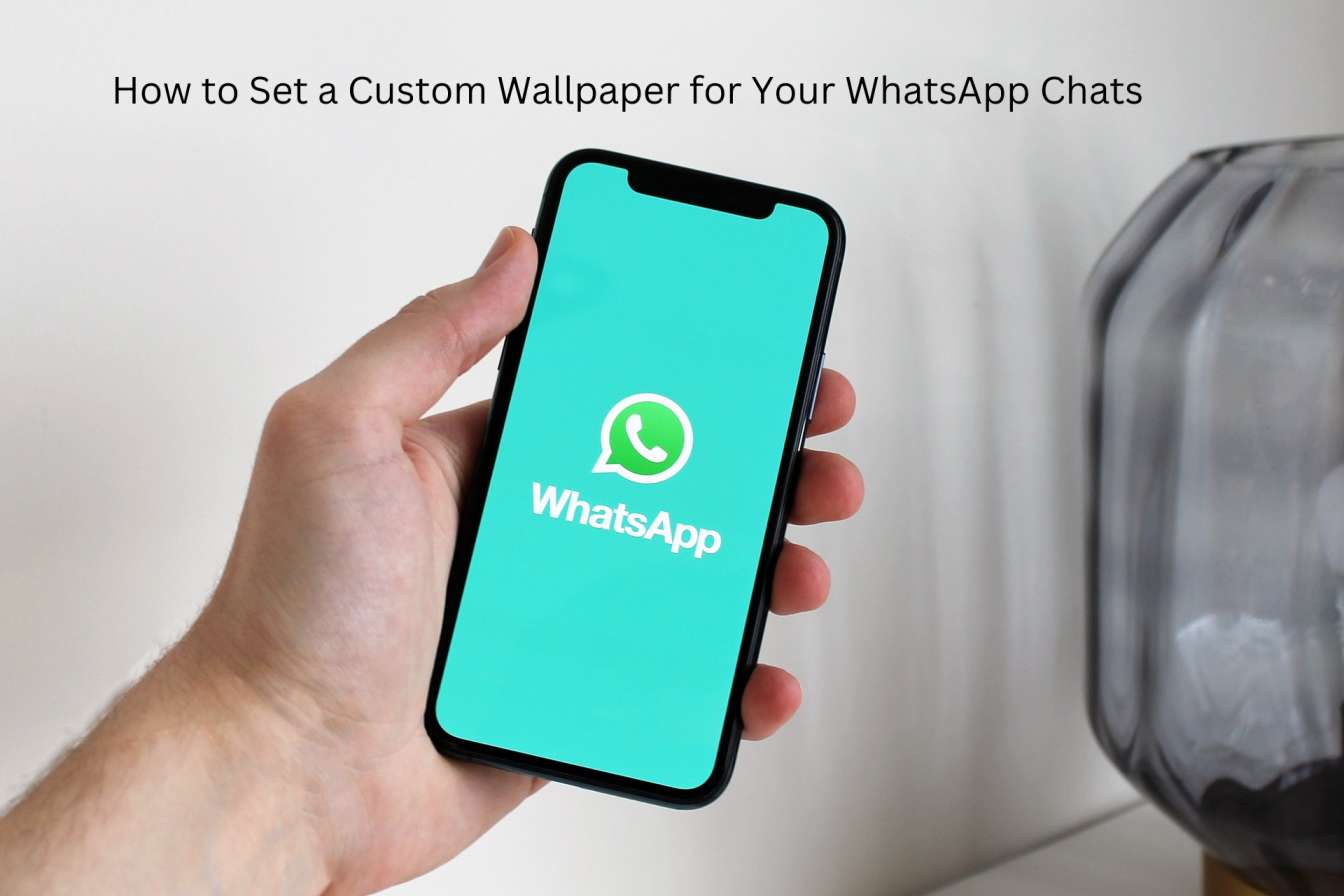
I get it, WhatsApp is where you spend half your day, so why shouldn’t it look exactly how you want? I discovered the custom wallpaper feature a while back and since then I have come to realize most people are not aware of it. Well, as it happens, setting a custom wallpaper for your WhatsApp chats is a lot easier than I realized (and dare I say? It’s a small thing, but messaging does feel less banal because of it).
Post Your Comment Here Let me guide to what’s available, how you can set it up for yourself and some stuff I’ve learned that may prevent you from becoming frustrated.
What You Can Really Customize at This Moment
I was surprised by how many options WhatsApp managed to cram in when I first opened the wallpaper settings. You don’t have to be stuck with the boring default wallpaper if you’re tired of looking at it.
You have preloaded themes in both the Bright and Dark collections including patterns, gradients, you name it. For the more minimalist oriented, there’s a wide range of solid colors (32 plus) that actually look nice. The real game-changer for me? On photos from your camera roll. Even better, this little step made my chats feel much more personal: Seriously from a background of me doing yoga in Tulum, Mexico!!
There’s even a doodles overlay feature that hovers above your wallpaper. It’s very subtle, but adds a little something. If you want to have something slightly more fun than just a solid background.
Here’s what quite blew me away: you can have different wallpapers for different chats. The chat with your best friend might have one vibe, your work-group chat another. It’s this customization that makes WhatsApp feel like yours, rather than just another messaging app.
How to Actually Set It Up (It’s Easier Than You Think)
On Android, you open a chat, touch the three-dot menu, locate “Wallpaper & Sound” and then tap “Change.” Choose anything you like colors, themes, pictures from your gallery and bam, it’s done. If you’d rather apply it to all your chats at once instead, there’s an option for that in Settings.

On iOS, it’s almost the same but not quite: Open a chat, tap the name of the contact at the top and scroll down to “Wallpaper” then select something. Same flexibility of mind, different road to reach it.
The preview tool is useful in this instance. I always preview the wallpaper with real messages before I commit. Some of the backgrounds that appear cute on their own end up making your chat bubbles difficult to read, and it is annoying. Lesson learned the hard way.
The Stuff That Still Kicks Ass (And Just Is Pretty Fucking Cool)
WhatsApp is experimenting with animated and dynamic wallpapers that react to time of day. I don’t yet have full access but when that becomes available it’s going to be a neat touch walls being able to shift from day-time vibes to evening, perhaps.
There are also whispers of AI-suggested wallpapers that get to know your style. And I wonder how that’s going to work, but it’s on its way.” There are also suggestions of third-party partners for licensed art and designs, so one day you may not be stuck with an in-app purchase or just your own photos and WhatsApp’s own baked-in options when it comes to backgrounds.
Business WhatsApp customers will receive the same feel for customer support chats with branded wallpaper presets,” Gupta adds. I have not tried this myself but it should work great to keep up a professional appearance.
Everyday Hiccups (And How I Got Over Them)
The biggest issue I ran into? Text legibility. There are plenty of wallpapers that look beautiful until you realize the text messages on top of them are difficult to make out. The fix: Switch to a darker pair or opt for solids. It’s not fancy, but it works.
Image resolution was another one. And they look janky if you’re working with a photo that’s too big or strangely cropped. I have since learned to pre-crop photos to a 16:9 aspect ratio before uploading headache averted.
Something That Surprised Me: Wallpapers Don’t Sync Across Devices. So I made a nice background for it on my phone and then opened WhatsApp Web to see what would happen, and had gotten the default. That’s how the cookie crumbles, so remember it if you are bouncing between devices.
FAQ
How do I put different wallpapers on separate chats?
Yes, absolutely. Open any chat, tap Wallpaper settings and personalize only that individual conversation. Here’s where it gets fun you can add personality to each chat.
Will my wallpaper drain my battery?
No, not unless you are all in on animated wallpapers. Motion backgrounds are a tiny bit more taxing on the GPU, but not bad. I’d try it yourself on your device first and just disable if it seems to be creating drain. Solid colors and regular photos? Basically zero impact.
The Real Takeaway
Here’s what I do like about this feature: It’s optional, it’s simple (yet easy not to use if you don’t care for it) and could make your messaging experience feel more intentional. You’re not altering the way WhatsApp functions you’re just making it look more like something that you opted into rather than defaulted into.
Never played with custom wallpapers? Spend five minutes fooling around with it. Worst case? You hate it and go back to default. Best case? You’ll stumble on something that makes you smile before you even open a chat. It’s worth the couple of minutes it takes to get that ready.
Read:
How to enhance your soundbar quality?

I’m software engineer and tech writer with a passion for digital marketing. Combining technical expertise with marketing insights, I write engaging content on topics like Technology, AI, and digital strategies. With hands-on experience in coding and marketing.