Last updated on December 21st, 2025 at 07:19 am
Look, I’ve spent hours to get ready for Instagram by manually removing the backgrounds from images. It’s fiddly, it looks janky and half the time I inadvertently blur a portion of my subject. So, when I ran across Pixelcut Background Remover, I had to try it myself and find out how much time it really saves.
Spoiler: it does. Here’s exactly how I used it.
Why Do I Even Test This?
I run content on TikTok, Instagram, YouTube. These days, most of my shots are product photos or self-portraits with cluttered backgrounds or lifestyle that needs a quick and simple adjustment before sharing. Manual background removal in Photoshop? Not going to occur when I’m blogging every day. I needed something fast.
Pixelcut kept appearing in my feed, and it didn’t disappoint. So I tried it on something I actually intended to post. This is what I found.
Getting Started (Literally 30 Seconds)
First thing I noticed: No account needed. I clicked over to the Pixelcut website, and began uploading. That’s it. No sign-up bullshit, no gigantic watermarks thrown over my images.
I took a photo from today’s shoot: It was of me in my messy bedroom, holding some coffee up to the camera. Classic content creator problem. The interface was clean. All you have to do is drag or click to upload. I selected the JPG file on my iPhone’s photo library.
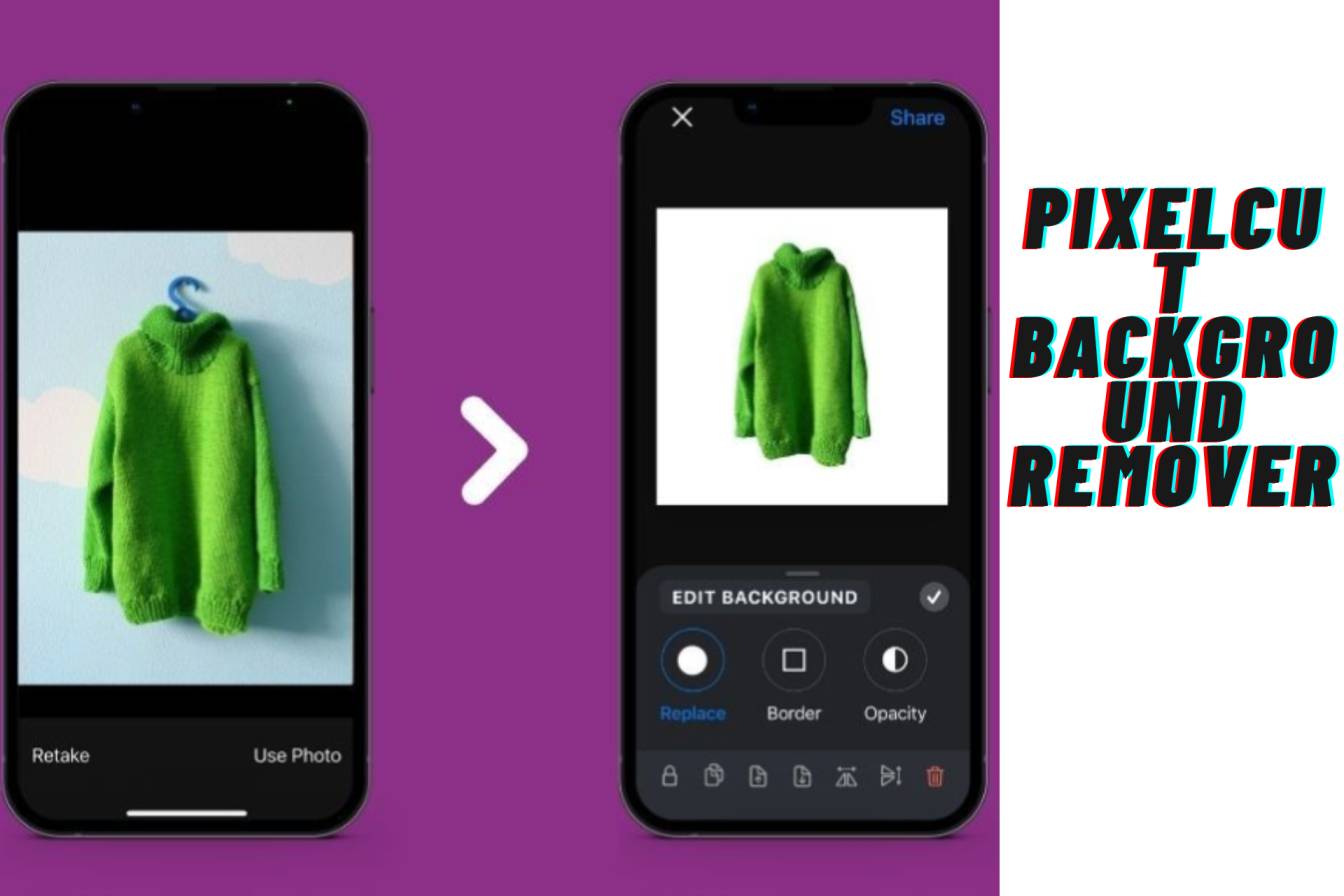
Processing took literally 3 seconds. Not an exaggeration. Before I could even begin to comprehend what was going on, Pixelcut had stripped out my background. My bedroom was gone. Only me and my cup on clear background.
How It Worked in Practice How it Actually Went Down When I Tried It
Step 1: Upload Your Image
I hit the upload button and, on a whim, picked a TikTok thumbnail I had been planning to edit. The tool supports JPG, PNG and HEIC files up to 6,000×6,000 pixels. plenty of resolution for any platform.

Step 2: Let the AI Do Its Thing
Seriously, that’s it. Promptly, in less than 3 seconds, Pixelcut’s AI was able to detect my subject (i.e. me) and remove the background from it. No manual selection needed. No clicking around edges. The AI just … got this, what was the subject and what was background.”
Step 3: Check the Results
And this is where I was impressed. Fine details, even such as strands of my hair were well preserved. The edges were crisp not fuzzy or too processed-looking like a couple of sketchier free tools I’ve used. Even my semi-transparent coffee cup passes through it without weird artifacts.
Output is a PNG with transparency, so it’s easy to drop in and use inside any design tool or post directly to social platforms.
Step 4: Use or Refine
Thing is, I could’ve left it there and posted. But Pixelcut also allows you to adjust. If your AI messes something up, there’s an eraser tool to fix it. I tried this on a more complicated shot with intersecting objects and yeah, I had to touch up one edge. It worked like a charm in the editing tools inside Pixelcut.

The Reality Check: Where It Fell Short
I tried a few difficult shots to test it. One had me with my back against something wood, matching my skin tones. Pixelcut’s AI itself actually identified a portion of my shoulder as “background” and attempted to delete it. I had to correct it manually with the brush tool, which only took me maybe 30 seconds.
Low-resolution images? Yeah, don’t expect miracles. I attempted to split an image stolen from Instagram that was of questionable quality, and Pixelcut faltered. It still operated, but less cleanly.
There are limits in the free version as well. You can only remove one removal at a time, and higher-resolution exports are locked behind the Pro plan ($9.99/month). Not a dealbreaker or anything, but something to be aware of if you’re going all in with the posts.
Why This Really Altered My Workflow
Before Pixelcut, I would spend 10 to 15 minutes per image in Photoshop or Canva.” Now? Just drop it in, get it done in seconds, download and move on. That’s a game-changer for TikToks, Instagram Reels and YouTube thumbnails.
I tried batch processing with the Pro plan, and it works for multiple images at once. Great for when I need to prepare content a week in advance.
The Bottom Line
Pixelcut Background Remover isn’t groundbreaking or anything, but it’s a thing that actually works for real-world creative work. The AI is clever enough to manage most shots, it’s quicker than manual editing and the free version you can start with zero friction.
Is it perfect? Nope. Complex backgrounds and poor-quality training data still trip it up. But for daily content creation? I’m using it now. Saves me hours every week, and my posts look cleaner because I can’t get in my own way by sitting there editing and not posting.
If you’re a creator interested in supercharging your workflow, try the free version out for yourself. The worst that can happen is that you spend a minute uploading a photo. At best, you’ve found your new editing shortcut.
Read: Building with Biology: Lab Grown Construction materials

I’m software engineer and tech writer with a passion for digital marketing. Combining technical expertise with marketing insights, I write engaging content on topics like Technology, AI, and digital strategies. With hands-on experience in coding and marketing.