Last updated on December 19th, 2025 at 02:23 pm
I understand, I’ve tried dozens of video conversion apps that promise the moon and hand you a glorified file copier instead. Then a random Tuesday led me to Wondershare UniConverter, and I thought, “Why not?” This is what really happened when I investigated.
What You Get With UniConverter: (Hint: It Actually Does Stuff)
I was prepared for the normal cumbersome UI and sluggish controls. Instead, I discovered what is not something that feels like software from 2010. It currently supports more than 1,000 video and audio formats and while that might read as marketing copy, it means your weird file from 2015 actually converts without errors.
The real kicker? The platform performs conversion up to 130X faster with GPU acceleration, so you’re not staring at a progress bar moving as slowly as Christmas for three hours. I tried it with an 4GB video file and the transfer was actually fast. That can make a difference when you have several projects on your plate.
But here’s the thing. wicked fast is no good if it comes at quality’s expense. UniConverter’s AI-Enhanced Compression Mode can reduce the file size up to 150% with good quality playback. I tested this on video destined for uploads to Instagram and TikTok, and the file size shrunk quite a bit without making them look like they’d been run through a blender.
AI Features: Hype or Legit It depends on you!
This is the point where I was skeptical. AI tools are everywhere, and most suck. But UniConverter actually added some solid features to the mix.
Its AI-powered subtitle generation and translation saved me multiple hours on a recent project. Instead of timing captions by hand, the software simply … did it. That alone could justify the purchase for creators working on international content.
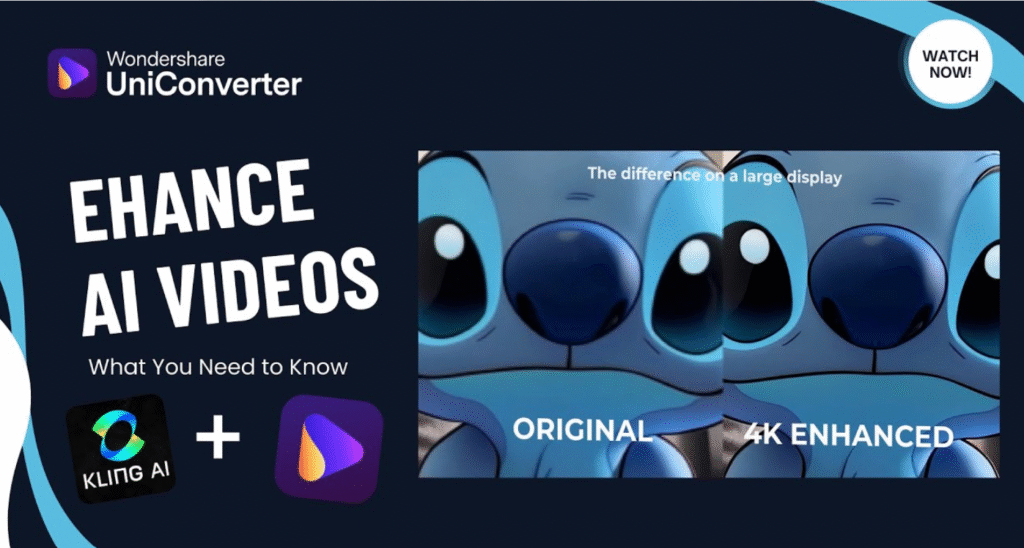
You also get some upscaling from 1080p resolution all the way to 4K and even 8K, which I was actually quite skeptical about until I saw it in action; while I thought this would look choppy at best, it actually held surprisingly well.
But there’s a catch: AI credits. Subscription plans provide you 600 AI credits per year, and perpetual licenses come with a total of 1,000 credits without the option to buy more once they are spent. That’s frustrating if you’re heavy on AI features, but how about the light users dipping their toes? You have enough of something to play with without running into the wall immediately.
How It Compares to Free Rivals
I tried out UniConverter alongside HandBrake (an open-source video converter with great format support) and Format Factory (a free multimedia converter with rudimentary features).
Here’s the frank rundown: HandBrake is great if you’re aiming for a free option and don’t mind an interface that isn’t as fine-tuned. You might try Format Factory for basic conversions. But neither offers what UniConverter does the batch processing, the AI tools and, yes, the quickness.
UniConverter 16.5 can batch process as many as 20 videos at once, an insane number if you’re producing content at any scale. Free alternatives process one or two files at the same time. For new recruits scaling up from casual project to slightly more serious like, that’s the difference between pissing away an afternoon and actually accomplishing some work.
The pricing reflects that. UniConverter This software costs $49.99 per year or $79.99 for lifetime licenses — and students can get it at an annual rate of $8. Not cheap, but not rapacious, either.
Real Limitations Worth Knowing
I’m not going to act like this is perfect. The video downloader feature is not as robust as dedicated tools, so if you’re looking mostly to download videos, you might consider something else. There are a few things that won’t convert, they are just unsupported such as certain encrypted files, some of the copy protected stuff which doesn’t bother me trying to convert anyway.
Also, the free trial restricts conversion to 1/3 of the original video length and adds watermarks to output files, so you can’t fully test it without buying. That’s a bit of a sting, but at the low prices, this is manageable risk.
What Really works for New Users
But if you are relatively new to video projects and want a bit of everything, here’s my opinion: UniConverter is greatest when you require batch conversion, rapid turnarounds on loads of files or playing with AI features without spending too much. It’s not the cheapest option, but it is way less clunky that say Adobe’s ecosystem.
The bulk subtitle generation and preset settings which can be batched makes it easy to work with, less time messing with it more time creating.
But you can skip it if you’re only converting one video every six months. But if you’re creating a workflow be it for social media content, client work or personal projects. Wondershare UniConverter really does offer what it says. No hype. Just results.
The real question isn’t whether it’s worth trying. It is your readiness to quit spending time on tools that waste it. This one actually does, for most new users wanting to graduate from free converters.
Read:
Top Ad Blockers for Windows: Say Goodbye to Annoying Ads

Hi, I’m Sathosh! I write about the latest news, trends, and best picks across different categories. I enjoy simplifying information, sharing insights, and keeping readers updated with useful and engaging content. My goal is to help you stay informed, inspired, and ahead of the curve.