Last updated on December 21st, 2025 at 08:50 am
Well, let’s face facts here. my old laptop was on its last legs. Boot times? Seven minutes. Loading anything? Painful. I’d been avoiding upgrading to an SSD because I assumed it required reinstalling Windows, hunting down game saves and investing a weekend in rebuilding my setup.
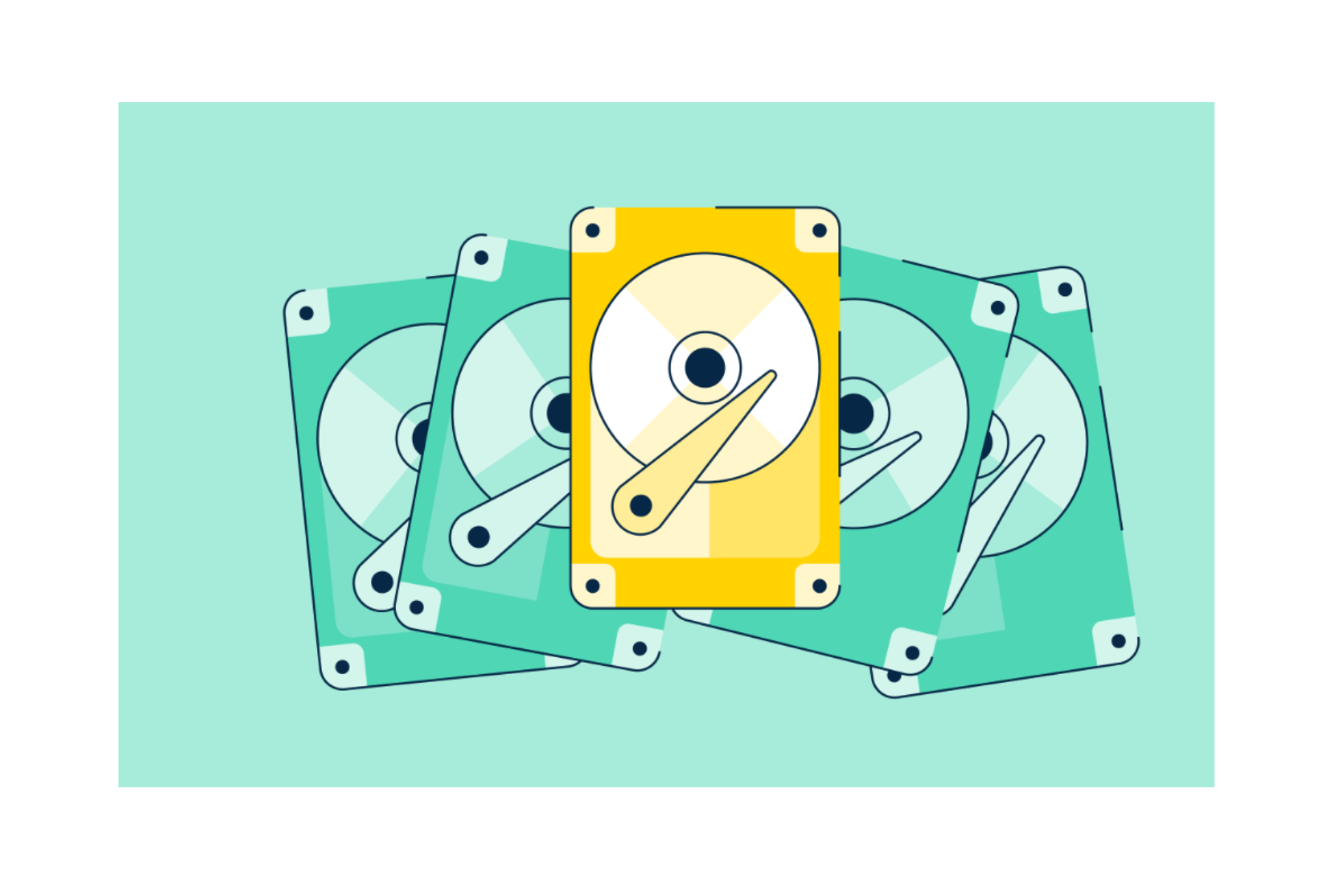
And then I discovered you can just clone your hard drive. Just clone it all Windows, games, files directly to the new SSD. No reinstall. Here’s what I learned.
Why I choose to clone rather than to cleanly re-install
I don’t think I had more than 400GB of stuff on my HDD. Steam games, Valorant, half a semester’s worth of project files and, if I’m being honest -too many- memes. The thought of re-downloading everything? Not happening.
Cloning would imply you copy EVERYTHING from your hard drive to the new SSD. Boot that up, and it’s like nothing changed except everything is faster. Your desktop is just as you left it, apps are in the same place and your browser tabs are right where you left them.
And, I don’t exactly consider myself a windows installation wizard. The less I could screw up, the better.
How to Clone a Hard Drive on Windows 10: Not What You Wanted
Here’s my shopping list:
The SSD: I just selected a random 500GB. Make it bigger than the used space on your current drive (not total size). My HDD was 1TB but I’d only used as much as 380GB, so I went with a 500gig.
USB-to-SATA adapter: You can find one on Amazon for around $15. You will need this so you can attach your new SSD to your laptop when cloning. Some people open up their case and change drives first, but I’m not that brave.
A cloning program: I used DiskGenius, since it’s free and doesn’t look like it was released in 2003. If you are looking for more user-friendly alternative, try the EaseUS Partition Master.
The Act of Cloning (Much Easier Than I Thought)
Step 1: Connect your new SSD
Plug in to your laptop with a USB adapter. Windows should recognize it automatically. If it does, format it it has to be initialized.
Step 2: Fire up the clone tool
Warez: I downloaded DiskGenius (free works just as well). When it’s open, you should see both drives listed. Your old spinner and your shiny new SSD.

Step 3: Choose the source and destination device
This is crucial and you can’t mix them up. Source = your current HDD. Destination = new SSD. DiskGenius has a button that looks like “Clone Disk” and walks you through it.
One cool thing: it auto-resizes your partitions for the new drive. Installation of my 1TB HDD was resized to my 500GB SSD without everyone’s favorite subject, math.
Step 4: Hit clone and wait
It took me around 45 minutes. Your mileage may vary depending on how much data you’re transferring and your USB connection speed. USB 3.0 is way faster than 2.0, so check your ports.
And I was an idiot and tried to do work on my laptop during it. Don’t. Just let it run. Go make a sandwich.
Step 5: Swap the drives
When cloning was complete, I turned off the computer completely, unscrewed the back panel and replaced the old hard drive with the new solid state drive. If that makes you nervous, YouTube has a million videos for your specific laptop model.
Step 6: Boot up
I crossed my fingers, pushed power, and it booted. Windows loaded in 12 seconds. My desktop looked identical. There it was, Steam opened and all my games were present.
The only hiccup? I had to enter bios (mash F2 while booting) and told it to boot from the SSD. Easy fix.
What I Would Do Differently Next Time
Look for hidden partitions: Certain laptops feature recovery partitions that are not cloned by the majority of cloning programs. Mine did not, but I’ve seen forum complaints about people who had this missing and then had issues booting.
Encounter aligned SSDs: there is an option for them in DiskGenius. It improves how data is laid out on the SSD for improved speed. I hadn’t enabled it the first time, and had to re-clone. Just tick that box.
Back up first: I got lucky. But if something glitches during the cloning process, you risk losing data. Throw your most important stuff on a USB drive/secure cloud storage before you begin.
Is Cloning Actually Worth It?
For me? Absolutely. It was maybe two hours from start to finish including the physical drive swap. Now compare that to reinstalling Windows, hunting for drivers and redownloading 400GB worth of games.
My laptop feels new. Apps open instantly. Games load faster. I kept my workflow exactly the way I liked it.
If you’re a student with papers and projects across your Mac or PC, or perhaps a gamer who doesn’t want to let go of saves and related settings (I feel you), cloning is the move. It’s nowhere near as frightening as it sounds.
Quick Troubleshooting Tips
Clone won’t boot? Check BIOS boot order. Ensure that UEFI/Legacy settings match your old drive. I always refer to this HP guide when it comes to boot issues.
“Insufficient space” error? Your SSD only has to be larger than the used amount of space on your HDD, not actually its total size. Clear some things out or get a larger SSD.
Taking forever? USB 2.0 is painfully slow. Plugged into a “USB3” port (usually blue on the inside). Also, shut down everything else running on your PC.
Final Thought
I procrastinated on this upgrade for months, convinced that it would be a headache. Cloning a hard drive on Windows 10 is perhaps one of the easiest tech things you can do in terms of computer maintenance. If your laptop is running poorly and the only thing holding you back from buying an SSD is price … then go buy one.
Clone your drive, transplant the hardware and get back to what you were doing, instead of reinstalling operating systems.
Also Read:
Why Use A Chat API Today The Automation Edge Your Business Is Lacking

I’m software engineer and tech writer with a passion for digital marketing. Combining technical expertise with marketing insights, I write engaging content on topics like Technology, AI, and digital strategies. With hands-on experience in coding and marketing.