Last updated on December 21st, 2025 at 10:26 am
Look, I’ve been there. At the point where your screen goes blank, your heart falls and you are sure that all is over.
A month ago, my laptop chose to break down right after updating windows probably typical, right? By the time it started again, a half of my files had become problematic. It was at this point that I found out that CHKDSK is not any random windows utility. It actually rescued my stuff.
This is what has happened and how you can use it also.
What I Learned When My PC Crashed After a Blue Screen
And so there I stood looking at the Blue Screen of Death. You are aware of the one–that beautiful blue screen which informs you that there is trouble with Windows. I was rebooted back to my desktop and something was amiss. Files wouldn’t open. Folders looked corrupted.
This I did not know at the time, but blue screen crashes corrupt your file system. Windows has a way of shutting down when you do not mean it to and like closing a book when you are still writing in it. The Master File Table, or, in other words, the index of the location of all your files, is scrambled.
Here’s what I did:
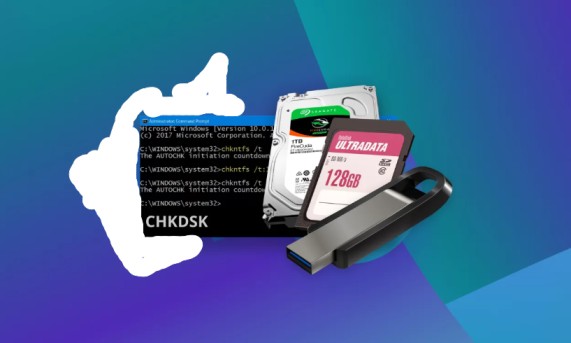
I have opened Command Prompt in administrator mode (right-click the start button, choose it in the menu) and typed the following:
chkdsk C: /fWindows informed me that it would not work when the system was in use. This would make sense- attempting to rearrange your wardrobe on the way you are still dressing. I made it as part of the next restart.
On rebooting, CHKDSK was automatically run. It was approximately 40 minutes on my 500GB drive. When windows rebooted those corrupt files? Back to normal. I could open everything.
The /f parameter fixed file system errors- the scrambled index I said. It did not scan over all the sectors (it would have been hours) but it mended the organizational structure.
Power Outage Recovery: When Everything Goes Dark
Two weeks later, a storm hit. There was loss of power when I was on duty. And there was no word of caution, and boom darkness.
At the moment of power recovery and restarting my PC, Windows automatically ran CHKDSK. That’s actually a good sign. It refers to the fact that Windows was delved in the dirty bit, a sign that indicates that a file request was not closed.
But here’s where I got smarter. Once that automatic scan was complete I ran a more thorough scan on my hard disk that is also attached to my machine that was also off:
chkdsk D: /rThis was more time consuming–say 3 hours. The /r parameter also does everything that /f does, but it also searches the bad sectors. These are locations on the drive that got burnt. CHKDSK identifies them with a so that Windows will not make an attempt to use those regions once again.
I found 2 bad sectors. Not awful, but should be known. CHKDSK used the data in these locations to transfer it to healthy locations. Without this, windows could have continued to attempt to save files there, as it could have resulted in even more corruption in the future.
Speedy hint I will desire to know: Don’t situate CHKDSK when it is being executed. I became impatient on one occasion and called a shutdown. Bad idea. The only thing to do was to run it over again.
My USB Drive Rescue Mission
My 64GB USB drive has begun to act possessed last week. It appeared in File Explorer and not able to open. Continued to give me an error of file or directory being corrupted.
This is highly prevalent with USB drives. You arrow out without properly ejecting and the file system gets disoriented. Ripping a page out of a book- the table of contents still shows this page, but it is no longer there.
I then plugged it in and went back to Command Prompt and saw what drive letter it was assigned (it was E: in my case). Then ran:
chkdsk E: /fFive minutes later, rescued. CHKDSK discovered fragmented files of orphans and reconstructed the path. I would be in a position to access anything once again.
The FAT32 file system of the USB had broken links, here is what really happened behind the scenes. There were files but Windows could not locate them due to the misplaced map. CHKDSK rewrote that map.
One of them was strange I discovered an FOUND.000 folder later containing a number of .CHK files. These are file fragments CHKDSK restored that were unsuccessful in recon-creation. The majority of them were some temporary files that I did not require and I deleted the folder.
What I Wish Someone Told Me Earlier
Timing matters. My laptop took 40 minutes in a simple /f scan. The deep scan on my external drive /r? Three hours. In case you are doing /r, prepare it before going to sleep or going to work.
It cannot be used on drives that are actively used. Your C: drive can not be scan countries when you have windows operating on it. Schedule it for restart. But external drives? Those you can check anytime.
Don’t use it on dying drives. Prior to running CHKDSK, make sure that there is no clicking or SMART-port attacks on your hard drive. Seriously. It’ll make things worse. Take away your information first then worry on repair.
The No-Frills Version of the Panicking-You Simple Version.
In case your PC has just crashed and you are reading this in a fit of panic, here is the quickest way:
- Reboot your computer, as usual.
- Open Command Prompt as administrator
- Type chkdsk C: /f and hit Enter
- Let it schedule for next boot
- Reboot and run (get coffee, it is time-consuming)
In the case of external drives or USB sticks that are causing you errors then just repeat the same command but replace C: with the letter of the drive that is appearing.
What Actually Gets Rescued
CHKDSK rescued me of three things in these accidents:
- structure (so Windows recognizes the positioning in which files belong)
- Bad sector data that has been corrupted by moving to healthy sectors.
- The organization of the folders (directory indexes).
It does not restore lost files. CHKDSK will not restore them in case you emptied your Recycle Bin. But due to crashes, poor shut downs, or drive errors? Yeah, it works.
Real Talk: When It’s Not Enough
One of my files did not completely restore following my power failure, a video that I was working on. Relevant pieces of it, found by CHKDSK in that FOUND.000 folder were too small to be reassembled automatically.
As the case might be, you would require a real data recovery software. CHKDSK does not deal with extreme recoveries, it deals with file system problems.
But for everyday crashes, surprise shutdowns, and corrupted USB drives? It’s rescued my files three times now. Worth knowing how to use it.
Next time your PC crashes, don’t panic. Open that Command Prompt and let CHKDSK do its thing. Worked for me.
Read:
Nai Taiyari.com: Can You Actually Make Money Here?

I’m software engineer and tech writer with a passion for digital marketing. Combining technical expertise with marketing insights, I write engaging content on topics like Technology, AI, and digital strategies. With hands-on experience in coding and marketing.